

How to Connect a Fiscal Printer in Chrome Without Drivers
Until now, connecting a fiscal printer required a technician, COM port, Windows drivers and DLL libraries. With WebSerial, Chrome communicates directly with the fiscal printer via USB — no software installation needed. Here's how.
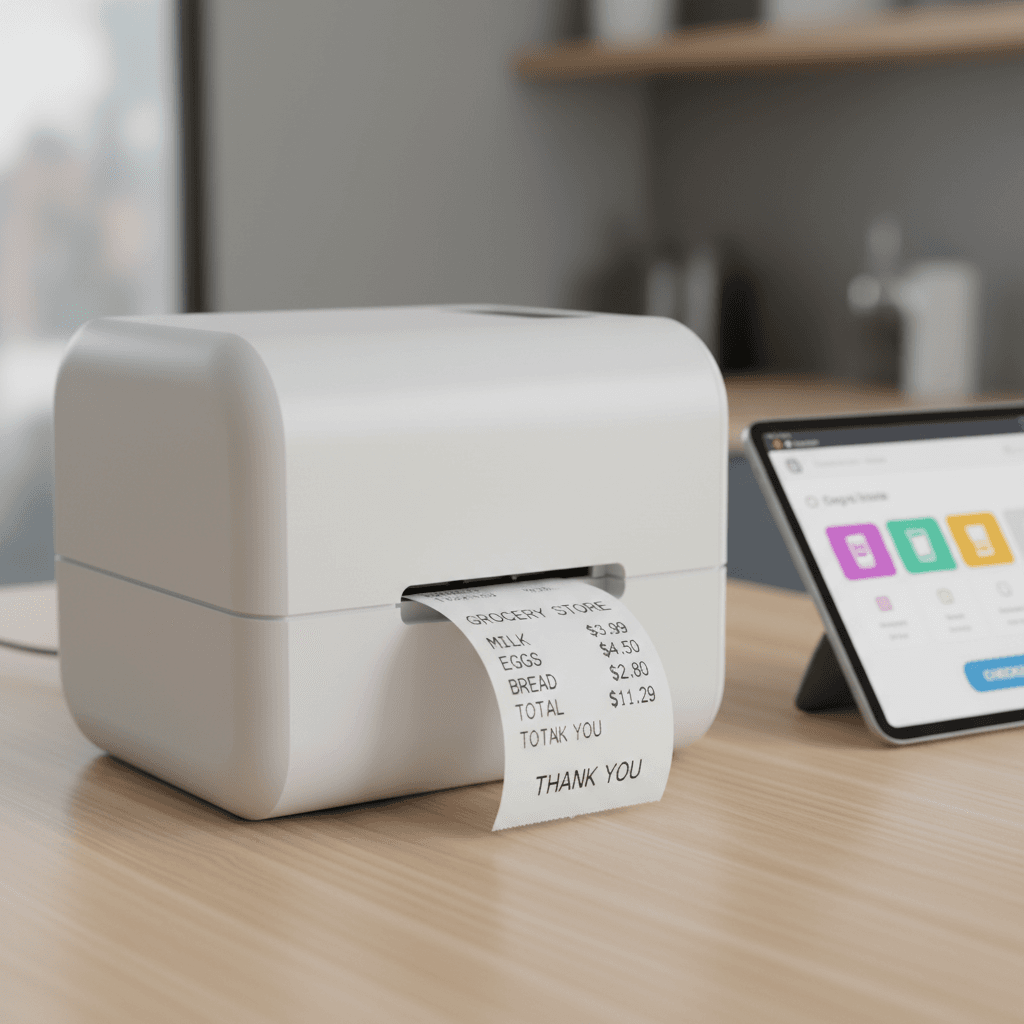
What is WebSerial?
WebSerial is an API built into Chrome that allows web applications to communicate with USB devices directly. No drivers, DLL libraries or software installation needed. Works on Windows, Mac and ChromeOS.
Supported fiscal printers
Facturino uses the ISL (International Standard Link) protocol — the standard for Balkan fiscal printers.
- Datecs FP-700, FP-700X, FP-2000, FP-800 and other models
- Tremol FP01-KL, S25, M20 and others
- Daisy Compact-S, Expert and the rest
- Any other ISL-compatible printer
Step by step: connecting
- 1
Plug the printer into USB
Most fiscal printers have a USB port alongside COM. Plug the USB cable into your computer or tablet.
- 2
Open Facturino in Chrome
Go to app.facturino.mk and navigate to Settings → Fiscal Devices.
- 3
Click "Connect Device"
Chrome will show a list of USB devices. Select your fiscal printer (usually shows as "USBxxxx" or "Datecs FP-700").
- 4
Done!
The printer is connected. The green dot in the POS interface shows the fiscal printer is active. Next time you open Chrome, it auto-connects.
VAT groups (A/B/V/G)
Facturino automatically maps items to VAT groups per Macedonian law:
- Group A: 18% VAT (standard rate)
- Group B: 5% VAT (reduced — medicines, books, school supplies)
- Group V: 10% VAT (reduced — food, hospitality)
- Group G: 0% VAT (exempt)
WebSerial vs. COM port advantages
- No drivers: no installation, no DLL, no Windows dependency
- Works on every OS: Windows, Mac, ChromeOS
- No technician: plug USB, select device, done
- Auto-reconnect: Chrome remembers the device and reconnects automatically
- Secure: user must explicitly approve device access
Common issues and solutions
- 1
Printer not showing in list
Check that the USB cable is properly connected. Some printers need a USB-B cable (square connector). Restart the printer and refresh Chrome.
- 2
Chrome asks for permission every time
The first time Chrome asks for permission (user gesture). After approval, Facturino remembers and auto-connects next time.
- 3
Prints strange characters
Facturino uses CP1251 encoding for Cyrillic. If your printer doesn't support Cyrillic, contact us for help.
Connect your printer in 2 minutes
Sign up free, plug USB and print a fiscal receipt from Chrome.
Start free